Set Up the Data Pipes Connections
Data Pipes connections require the CData Sync service to be installed and running on the FintechOS environment. For information on how to configure the CData Sync service, see the Innovation Core documentation.
Data Pipes data replication jobs require a source - destination pair of connections. The source connection represents the external data source of the replicated data and the destination connection is where the replicated data is stored. In the case of FintechOS, the destination will be the underlying Microsoft SQL database server.
When you open the Data connections page, you may have to enter the CData Sync username and password. If you don't know the CData Sync credentials, contact your administrator.
Step 1: Set up the source connection
- In FintechOS Studio, on the main menu, click Evolutive Data Core > Data Pipes > Connections.
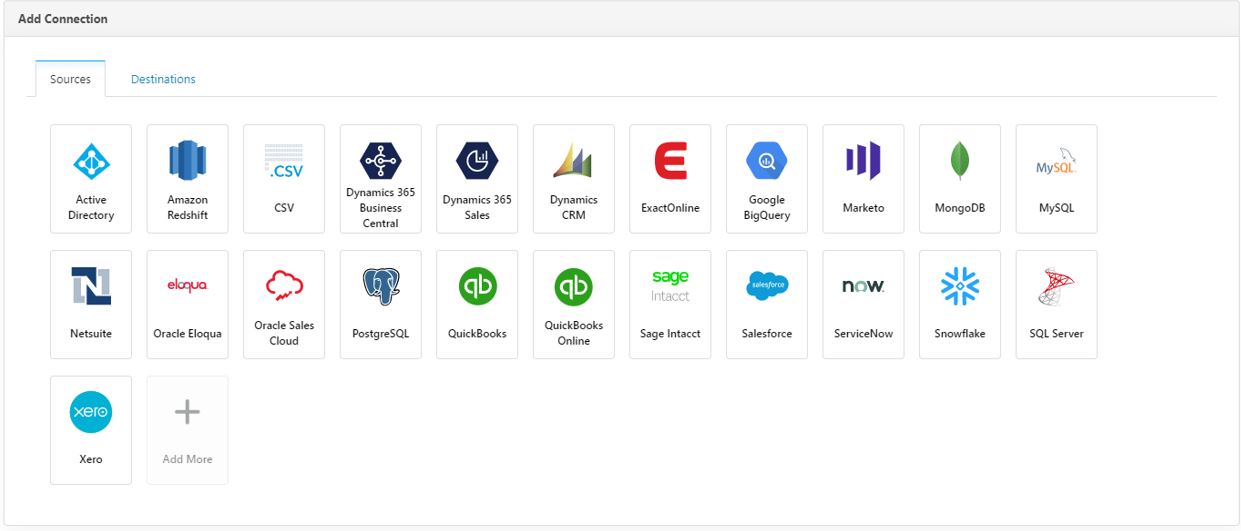
- Scroll down to the Add Connection section, select the Sources tab, and select the connector that matches the source system for the desired data replication.
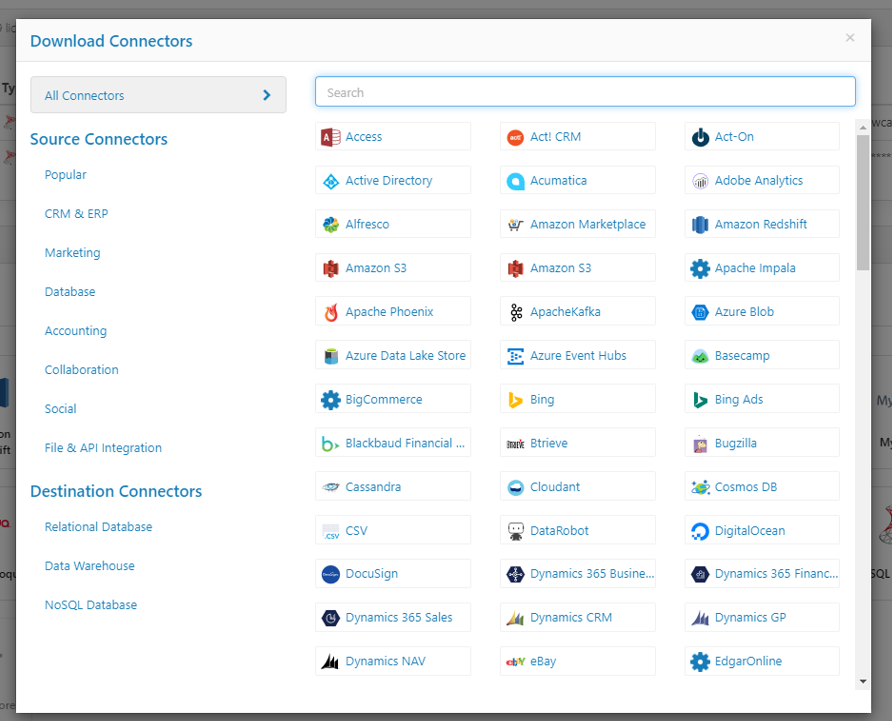
You can install additional connectors if you click on Add More and select the connector from Download Connector page.

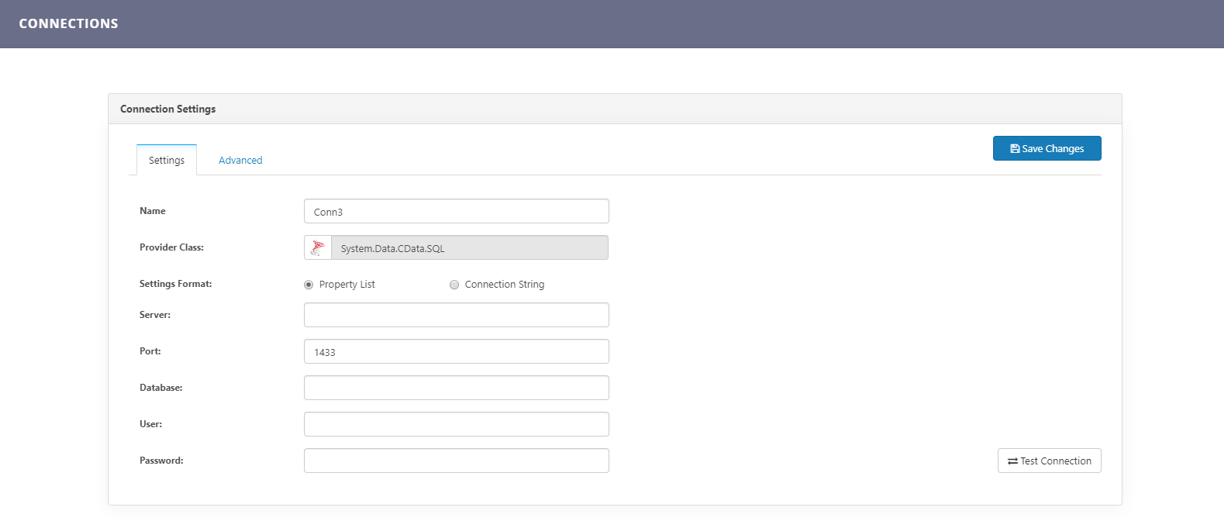
- Configure the connection settings specific to the selected connector. For details about each specific data source settings, see the CData Sync documentation.
- Click Test Connection to see if you properly configured the connection.
- Click Save changes to save the data source connection.
Step 2: Set up the destination connection
- In FintechOS Studio, on the main menu, click Evolutive Data Core > Data Pipes > Connections.
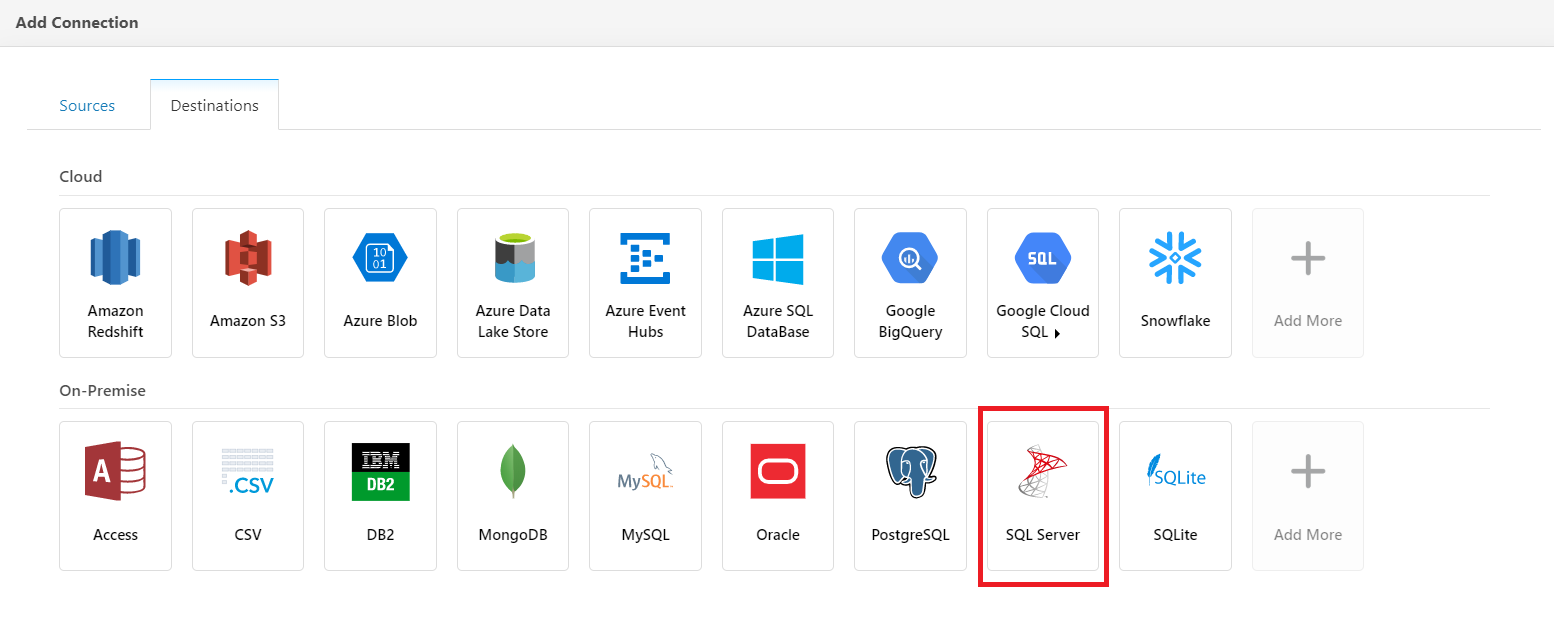
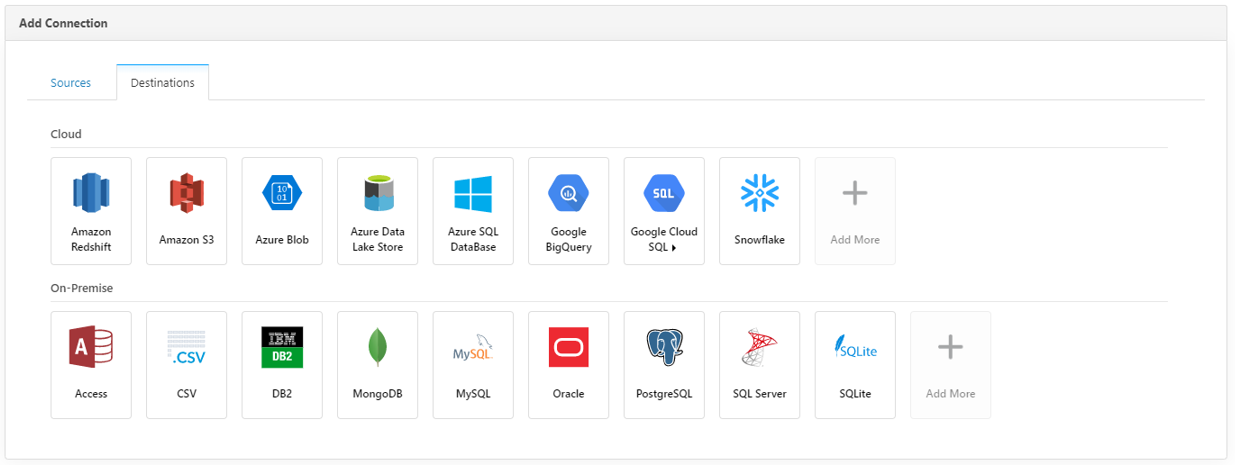
- Scroll down to the Add Connection section, select the Destinations tab, and select the connector that matches the destination system for the desired data replication. In the case of FintechOS, this will be SQL Server.
You can install additional connectors if you click on Add More and select the connector from Download Connector page.
- Configure the connection settings specific to the selected connector. For details about each specific data source settings, see the CData Sync documentation.
- Click Test Connection to see if you properly configured the connection.
- Click Save changes to save the data destination connection.
 Example: How to configure the local FintechOS database as a destination connection
- In FintechOS Studio, on the main menu, click Evolutive Data Core > Data Pipes > Connections.
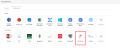
- Scroll down to the Add Connection section, select the Destinations tab, and select the SQL Server connection.
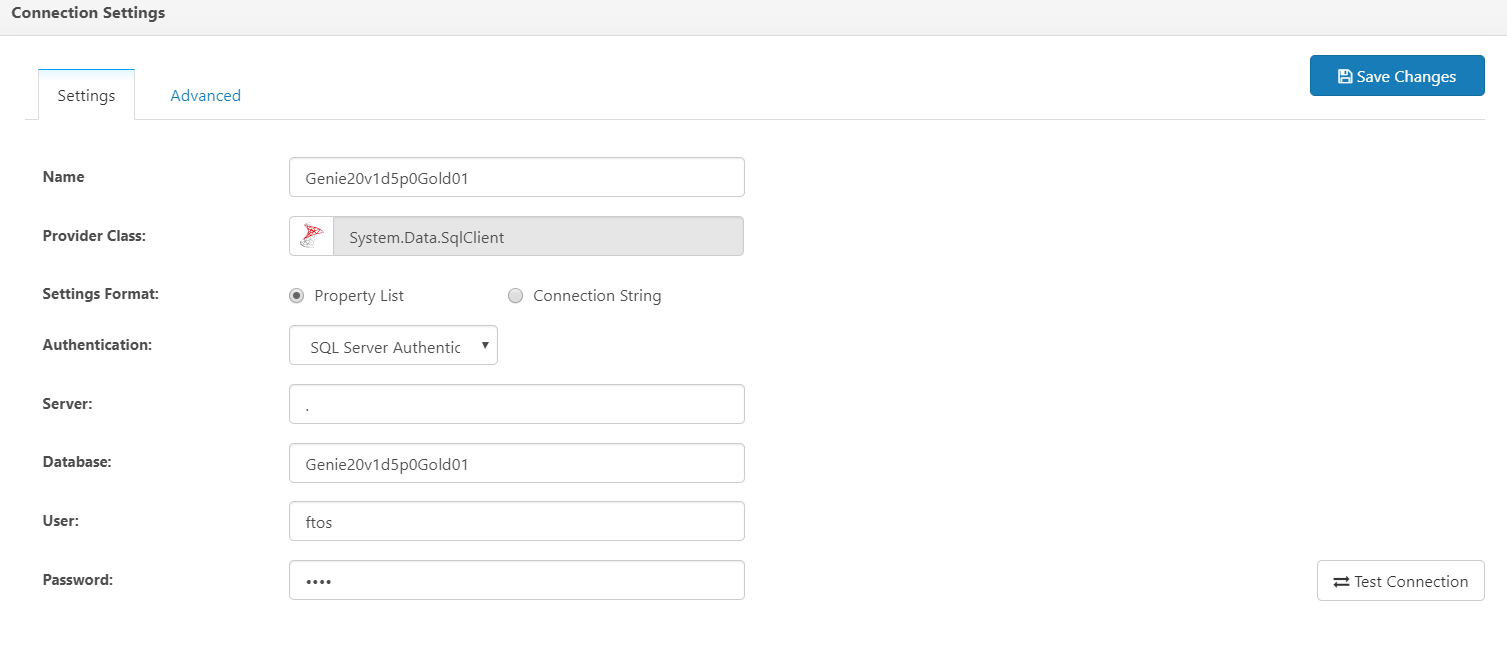
- Configure the connection settings specific to the FintechOS database server.
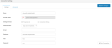
Setting Description Name Enter a representative name for your connection. Settings Format If you prefer to enter all the connection settings using a single database connection string, select Connection String. Otherwise, leave it as Property List. Authentication Leave SQL Server Authentication. Server Enter the name of the SQL Server running on your machine.
Entering a dot "." will default to your local SQL Server.Database Enter the database on the SQL Server used by FintechOS. User Enter a user account that has access to the above database. You can use the user account FintechOS is using to access the database. Password Enter the password for the above user account.
You can refer to the<connectionStrings>entry in the Web.config file to find out details about the FintechOS database connection.Copy<connectionStrings>
<add name="EbsSqlServer" connectionString="Data Source=GenieDB;Initial Catalog=Genie20v1d3b339;Integrated Security=False;User ID=ftos;Password=abcdefg" providerName="System.Data.SqlClient" />
</connectionStrings> - Click Test Connection to see if you properly configured the connection.
- Click Save changes to save the data destination connection.